How to Install WIN.AI as a PWA on Android
By Win.AI Editorial
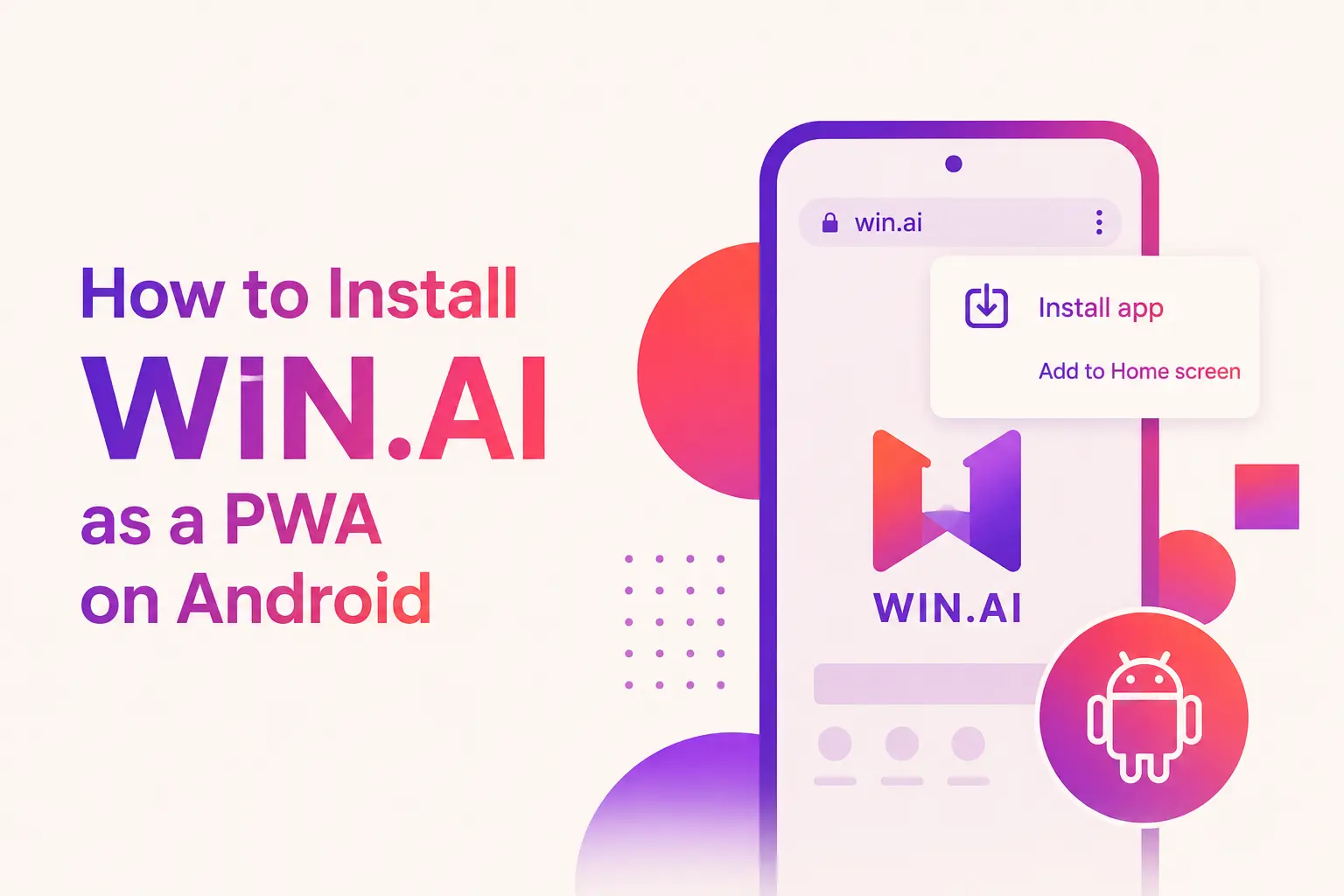 Installing WIN.AI as a Progressive Web App (PWA) lets you access the
platform just like a native app - without downloading it from Google
Play.
Installing WIN.AI as a Progressive Web App (PWA) lets you access the
platform just like a native app - without downloading it from Google
Play.
Method 1: Install Using Chrome (Recommended)
- Open Google Chrome on your Android device.
- Visit https://win.ai.
- Wait a few seconds for the page to fully load.
- Tap the three-dot menu (⋮) in the upper-right corner.
- Select Install app or Add to Home screen (the wording may vary depending on your Android version and Chrome release).
- Tap Install to confirm.
That's it! 🎉
The WIN.AI icon will appear on your home screen and app drawer. You can launch it just like any other Android application.
Method 2: Install from the Browser Prompt
If your browser detects that WIN.AI supports PWA installation, you may automatically see a prompt such as:
Install WIN.AI?
Simply tap Install, and the application will be added to your device.
Benefits of Installing WIN.AI
- ⚡ Faster startup and smoother performance
- 📱 Opens in its own app window (without browser tabs)
- ⭐ Easy access from your Home Screen
- 🔄 Automatic updates whenever you visit the app
- 💾 Uses minimal storage compared to traditional apps
Troubleshooting
I don't see the "Install app" option
Try the following:
- Make sure you're using the latest version of Google Chrome.
- Refresh the page and wait a few seconds.
- Visit the website directly (not in Incognito mode).
- Ensure you have an active internet connection.
I only see "Add to Home screen"
Some Android devices display Add to Home screen instead of Install app. Selecting this option will still install the PWA on compatible devices.
Which browsers support PWA installation?
WIN.AI can be installed from most Chromium-based browsers, including:
- Google Chrome
- Microsoft Edge
- Brave
- Samsung Internet (supported on most recent versions)
Tip: For the best experience, we recommend installing WIN.AI using the latest version of Google Chrome on Android.