How to Install WIN.AI as a PWA on iPhone & iPad (iOS)
By Win.AI Editorial
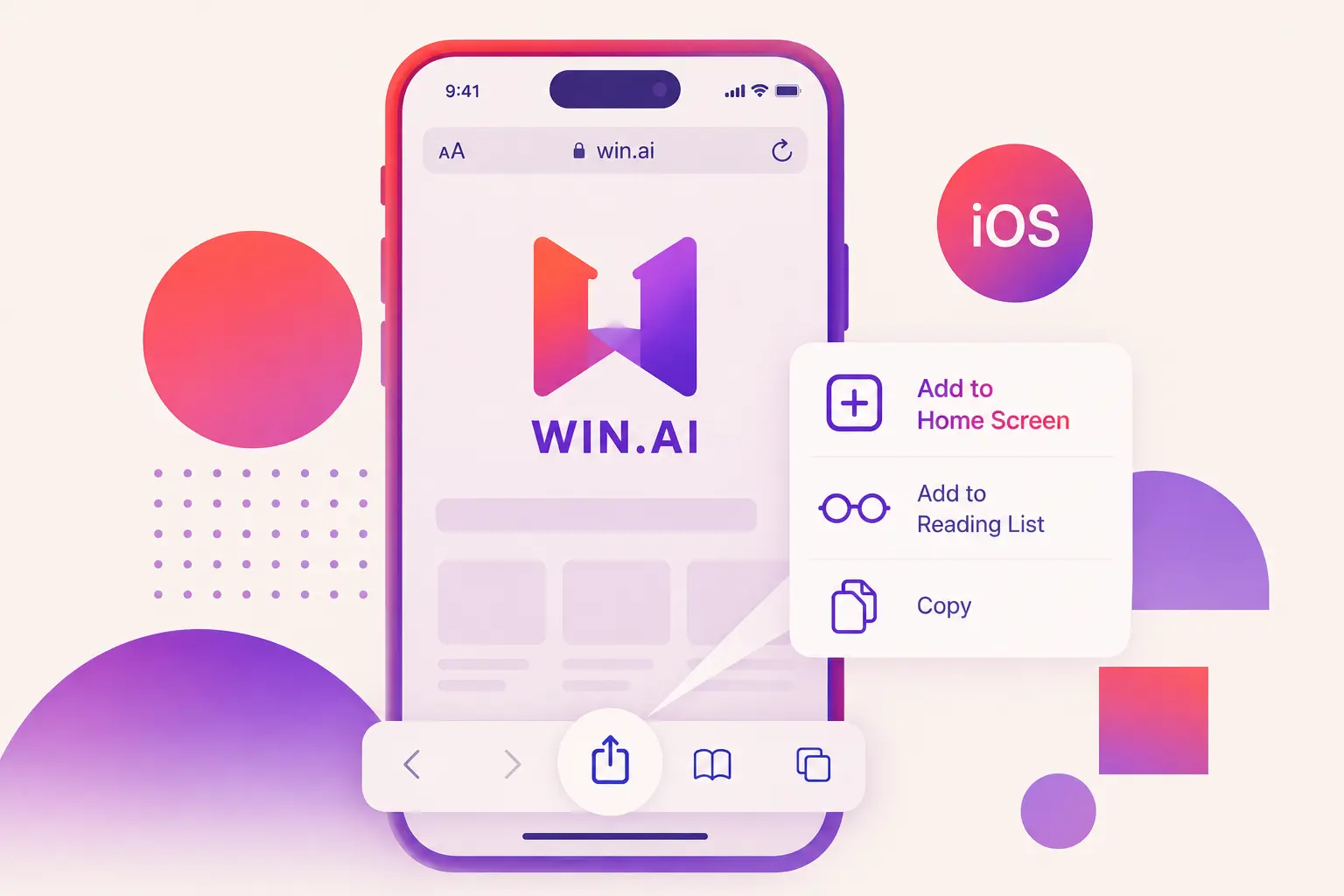 Installing WIN.AI as a Progressive Web App (PWA) gives you quick access
from your Home Screen without downloading anything from the App Store.
Installing WIN.AI as a Progressive Web App (PWA) gives you quick access
from your Home Screen without downloading anything from the App Store.
Before You Start
PWA installation on iOS is only supported in Safari. Other browsers, such as Chrome or Edge, cannot install PWAs on iPhone or iPad.
Install Using Safari
- Open Safari on your iPhone or iPad.
- Visit https://win.ai.
- Wait until the page finishes loading.
- Tap the Share button (the square with an upward arrow).
- Scroll down and tap Add to Home Screen.
- (Optional) Edit the app name if you like.
- Tap Add in the top-right corner.
Done! 🎉
The WIN.AI icon will appear on your Home Screen and can be launched just like a regular app.
Benefits of Installing WIN.AI
- ⚡ Faster access from your Home Screen
- 📱 Full-screen app experience without Safari's address bar
- 🔄 Automatic updates whenever you use the app
- 💾 No App Store download required
- ⭐ Uses very little storage space
Troubleshooting
I don't see "Add to Home Screen"
- Make sure you're using Safari.
- Reload the page and try again.
- Ensure the page has fully loaded before opening the Share menu.
- If you're using a managed device, your administrator may have disabled this feature.
Can I install WIN.AI from Chrome on iPhone?
No. Apple only allows PWA installation through Safari on iOS.
Will the app update automatically?
Yes. Because WIN.AI is a Progressive Web App, updates are applied automatically when you open or refresh the app.
Tip: For the best experience, always install WIN.AI using the latest version of Safari on iPhone or iPad.